Adding Sponsors
Admittee makes it easy to showcase your sponsors and give them visibility on your event pages, tickets, and posters. You can add sponsors either as defaults (applied to every new event) or directly to an individual event.
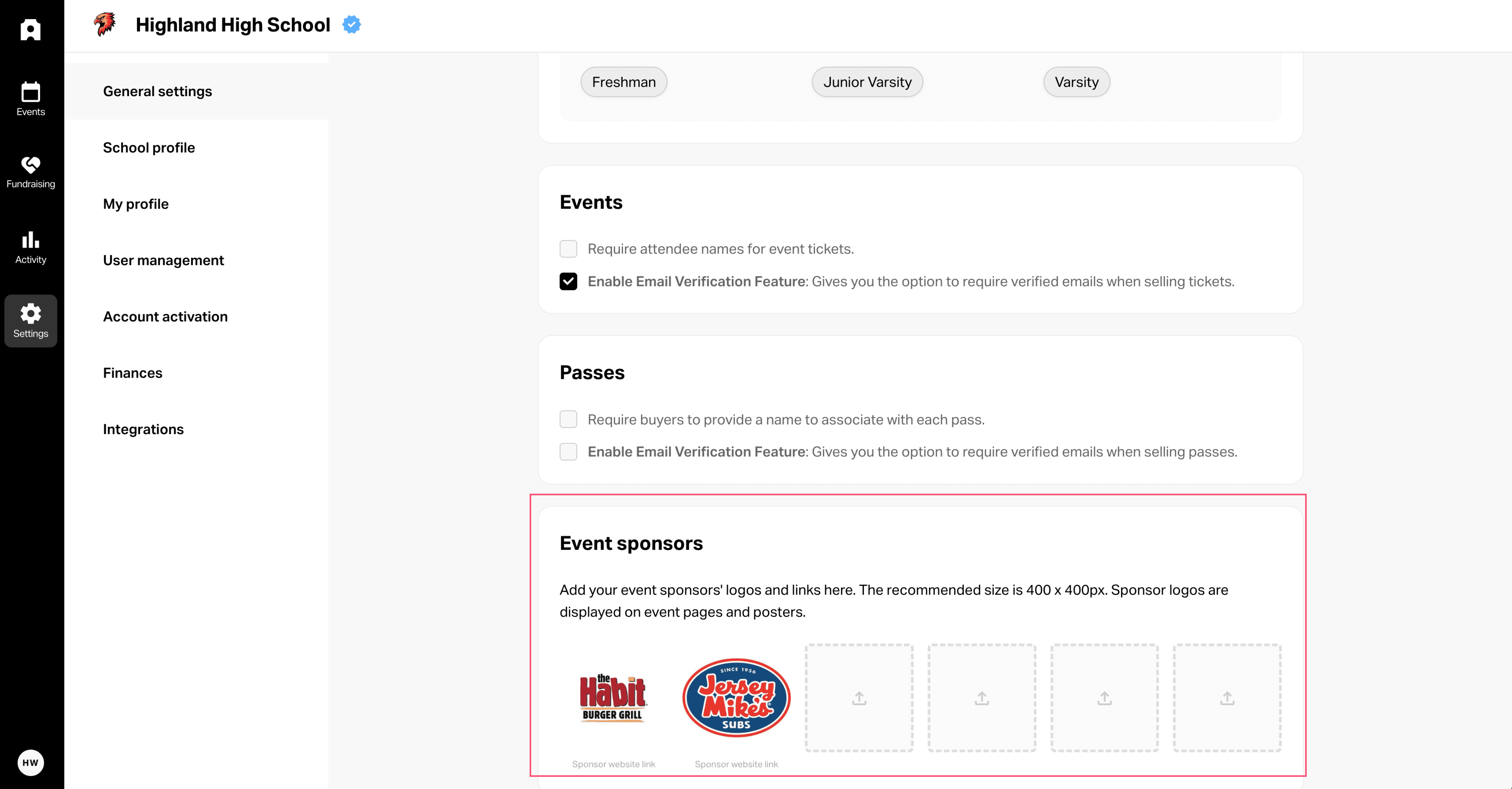
⚙️ Add Default Sponsors. These sponsors will automatically appear on all new events you create.
Go to Settings > General Settings.
Scroll to the Sponsors section.
Click Add Sponsor and upload their logo.
Enter the sponsor’s website URL (this will be linked to their logo).
Save your changes.
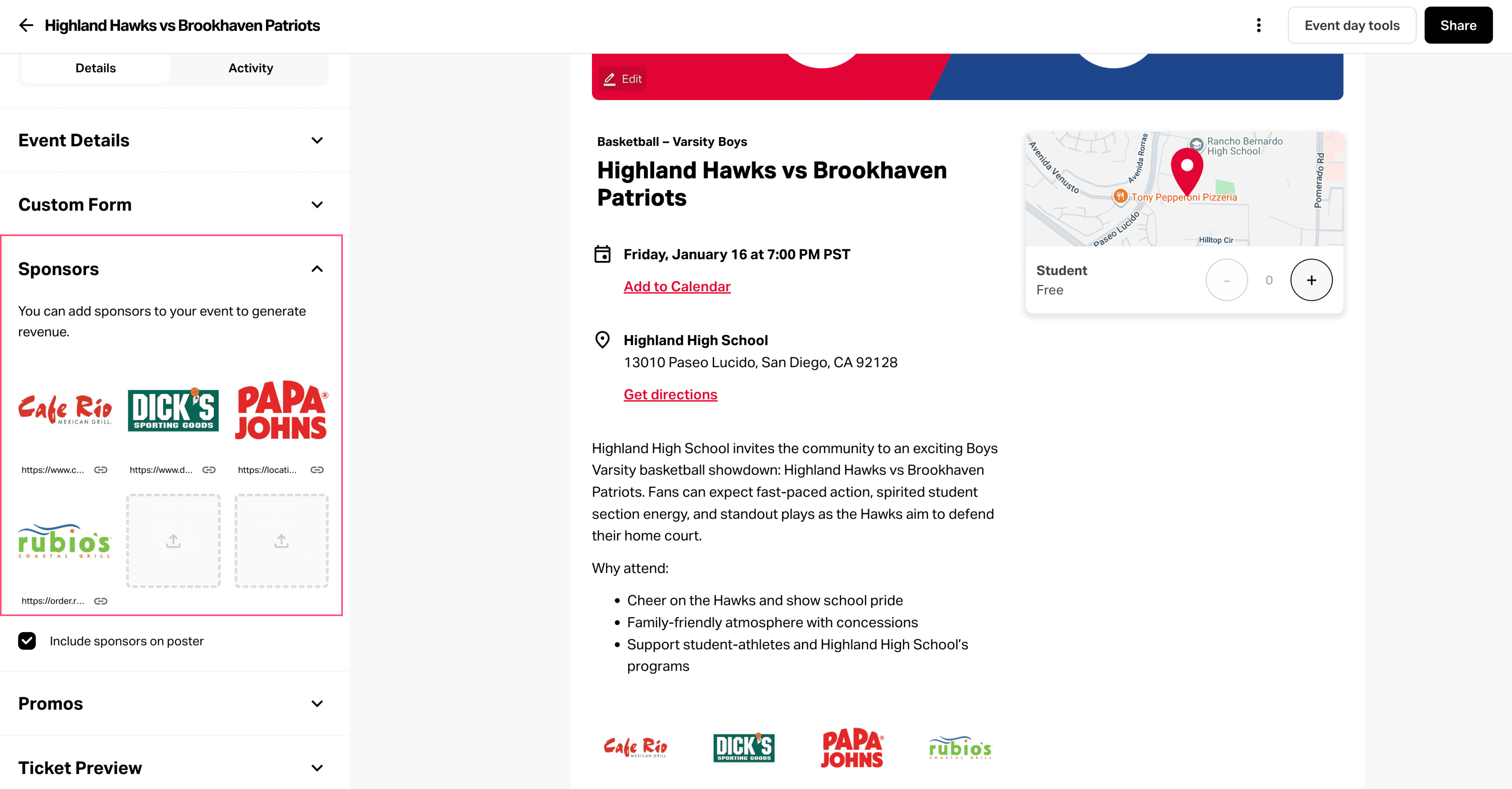
🎟 Add Sponsors to a Specific Event. This allows you to tailor sponsors for special events while keeping your defaults for everything else.
Open the event you want to edit.
Go to the Sponsors accordion.
Click Add Sponsor and upload the logo + URL.
If a default sponsor is already listed but you need a different one, simply delete and replace it with the new sponsor’s details.
💡 Best Practice
Use default sponsors for year-round partners who support multiple events.
Add or swap event-specific sponsors for individual games, performances, or fundraisers.
Keep sponsor logos high-resolution and use transparent backgrounds for the best display on posters and tickets.
✅ With sponsors added, your events not only look more professional but also create real value for your partners — helping you build lasting community relationships.
Related to Sponsors
Adding Sponsors
Written By: Jeremiah Simpson
Last Updated on Sep 22, 2025
Admittee makes it easy to showcase your sponsors and give them visibility on your event pages, tickets, and posters. You can add sponsors either as defaults (applied to every new event) or directly to an individual event.
⚙️ Add Default Sponsors. These sponsors will automatically appear on all new events you create.
Go to Settings > General Settings.
Scroll to the Sponsors section.
Click Add Sponsor and upload their logo.
Enter the sponsor’s website URL (this will be linked to their logo).
Save your changes.
🎟 Add Sponsors to a Specific Event. This allows you to tailor sponsors for special events while keeping your defaults for everything else.
Open the event you want to edit.
Go to the Sponsors accordion.
Click Add Sponsor and upload the logo + URL.
If a default sponsor is already listed but you need a different one, simply delete and replace it with the new sponsor’s details.
💡 Best Practice
Use default sponsors for year-round partners who support multiple events.
Add or swap event-specific sponsors for individual games, performances, or fundraisers.
Keep sponsor logos high-resolution and use transparent backgrounds for the best display on posters and tickets.
✅ With sponsors added, your events not only look more professional but also create real value for your partners — helping you build lasting community relationships.